
Microsoft Azure documentation
Deploy NVIDIA Nemotron 3 Nano Omni: video, audio, image and text understanding.
Deploy NVIDIA Nemotron 3 Nano Omni: video, audio, image and text understanding.
Written by Juan Julian Cea
Last updated 2026-07-01

In this example, you will deploy nvidia/Nemotron-3-Nano-Omni-30B-A3B-Reasoning-BF16 on Microsoft Foundry (classic) and then use it on a set of real-life multimodal use cases.
NVIDIA Nemotron 3 Nano Omni is a multimodal large language model that unifies video, audio, image, and text understanding into a single, highly efficient open model. Built to replace fragmented vision‑language‑audio stacks, it extends the Nemotron Nano family with integrated video+speech comprehension, Graphical User Interface (GUI), Optical Character Recognition (OCR), and speech transcription capabilities, enabling enterprise-grade Q&A, summarization, transcription, and document intelligence workflows.
The Nemotron 3 Nano Omni architecture extends Nemotron 3 Nano by bringing multimodal perception and reasoning into a single 30B hybrid MoE model.
- 🧠 Hybrid MoE architecture: Combines Mamba layers for sequence and memory efficiency with transformer layers for precise reasoning.
- 📷 Spatiotemporal visual processing and efficient video sampling: The inference-time Efficient Video Sampling (EVS) layer compresses the high-density visual tokens from multiple frames into a concise set that the LLM can process without overwhelming its context window.
- 🎨 Multimodal architecture:
- A strong text model at its core, preserving the foundation model’s language ability.
- Audio integration built upon the NVIDIA Parakeet encoder and specialized datasets that move beyond simple transcription.
- C-RADIOv4-H and Encoder-based Video Summarization to handle high-resolution images and dynamic video.

For more information, make sure to check the model card on the Hugging Face Hub, or the official NVIDIA blog post.
Requirements
To run this example, you need to meet the following prerequisites. You can also read more about them in the Azure Machine Learning Tutorial: Create resources you need to get started.
- You have a Microsoft Azure subscription and are logged in
- You have the
azCLI installed - You have the necessary permissions to:
- Create an Azure Machine Learning Managed Online Endpoint
- Create an Azure Machine Learning Deployment
- You have Python 3.10+ installed locally and
pip
For more information, please go through the steps in the guide “Configure Azure Machine Learning and Microsoft Foundry”.
Setup
Set environment variables
For convenience, you can set the following environment variables to be used throughout the example:
%env LOCATION <YOUR_LOCATION>
%env SUBSCRIPTION_ID <YOUR_SUBSCRIPTION_ID>
%env RESOURCE_GROUP <YOUR_RESOURCE_GROUP>
%env WORKSPACE_NAME <YOUR_WORKSPACE_NAME>
%env MODEL_ID nvidia/Nemotron-3-Nano-Omni-30B-A3B-Reasoning-BF16import os
from uuid import uuid4
os.environ["ENDPOINT_NAME"] = f"nemotron-omni-{str(uuid4())[:8]}"
os.environ["DEPLOYMENT_NAME"] = f"nemotron-omni-{str(uuid4())[:8]}"Install Azure Python SDK (+ dependencies)
You need to install some Azure Python SDK dependencies:
azure-identityto use theDefaultAzureCredentialauthentication with your Managed Identityazure-ai-mlto create the Azure Machine Learning Managed Online Endpoint + Deployment, and to invoke it
%pip install azure-ai-ml azure-identity --upgrade --quiet
Authenticate to Azure Machine Learning
You can then authenticate to Azure Machine Learning with your Managed Identity with Python as:
import os
from azure.ai.ml import MLClient
from azure.identity import DefaultAzureCredential

client = MLClient(
    credential=DefaultAzureCredential(),
    subscription_id=os.getenv("SUBSCRIPTION_ID"),
    resource_group_name=os.getenv("RESOURCE_GROUP"),
    workspace_name=os.getenv("WORKSPACE_NAME"),
)
Create endpoint + deployment
Create endpoint
Now you need to create the ManagedOnlineEndpoint via the Azure Machine Learning Python SDK as follows:
Every model in the Hugging Face collection is powered by an efficient inference backend, and each of those can run on a wide variety of instance types (as listed in Supported Hardware). Since models and inference engines require a GPU-accelerated instance, you might need to request a quota increase as per Manage and increase quotas and limits for resources with Azure Machine Learning.
from azure.ai.ml.entities import ManagedOnlineEndpoint

endpoint = ManagedOnlineEndpoint(name=os.getenv("ENDPOINT_NAME"))
client.begin_create_or_update(endpoint).wait()
Create deployment
Once the endpoint is created, you need to create the deployment indicating which model, hardware, and settings to use. In this case, we will be using a single instance of Standard_NC24ads_A100_v4 (1xA100), enough for deploying our model. You can use higher capacity instances in case you require better performance.
Also, we’ll be increasing the default timeout per request to 180s to ensure that we can process long image and audio files in time.
from azure.ai.ml.entities import ManagedOnlineDeployment, OnlineRequestSettings

deployment = ManagedOnlineDeployment(
    name=os.getenv("DEPLOYMENT_NAME"),
    endpoint_name=os.getenv("ENDPOINT_NAME"),
    model=f"azureml://registries/HuggingFace/models/{os.getenv('MODEL_ID').replace('/', '-').replace('_', '-').lower()}/labels/latest",
    instance_type="Standard_NC24ads_A100_v4",
    instance_count=1,
    request_settings=OnlineRequestSettings(request_timeout_ms=180000),
)
client.online_deployments.begin_create_or_update(deployment).result()
The deployment might take ~30 minutes, but it could also take longer depending on the selected SKU availability in the region.
Run inference on the Foundry (classic) Endpoint
Now that the endpoint is up and running, we are ready to run inference on it. We will be using the OpenAI Python SDK to send requests to our endpoint, which is by served through an OpenAI-compatible Chat Completions API at /v1/chat/completions.
For this example, we will query the model using all the accepted input modalities (e.g., audio, image, and video). Additionally, we will test the model with a mix of audio and image in the same prompt to see how it performs in multimodality scenarios.
Set up the OpenAI Python SDK
%pip install openai --upgrade --quiet
Retrieve the endpoint URL and API key, then create the OpenAI client, making sure to include the azureml-model-deployment header so every request is routed to the right deployment. Setting it once via default_headers is the recommended approach since the header needs to accompany each request.
from urllib.parse import urlsplit
from openai import OpenAI
import os

api_key = client.online_endpoints.get_keys(os.getenv("ENDPOINT_NAME")).primary_key
url_parts = urlsplit(client.online_endpoints.get(os.getenv("ENDPOINT_NAME")).scoring_uri)
api_url = f"{url_parts.scheme}://{url_parts.netloc}/v1"

openai_client = OpenAI(
    base_url=api_url,
    api_key=api_key,
    default_headers={"azureml-model-deployment": os.getenv("DEPLOYMENT_NAME")},
)
Alternatively, you can also build the API URL manually as follows, since the URIs are globally unique per region, meaning that there will only be one endpoint named the same way within the same region:
api_url = f"https://{os.getenv('ENDPOINT_NAME')}.{os.getenv('LOCATION')}.inference.ml.azure.com/v1"Or just retrieve it from either Microsoft Foundry (classic) or the Azure Machine Learning Studio.
Image understanding: Art historian AI tutor
In this first example, we will use Nemotron’s image capabilities to create an AI tutor for art history. We will send an image of the famous painting “Guernica” by Pablo Picasso, and prompt the model to generate Q&A pairs about it.

image_url = "https://recursos.museoreinasofia.es/styles/large_landscape/public/Obra/DE00050_2.jpg.webp"

response = openai_client.chat.completions.create(
    model=os.getenv("MODEL_ID"),
    messages=[
        {
            "role": "user",
            "content": [
                {
                    "type": "image_url",
                    "image_url":
                        {
                            "url": image_url
                        }
                },
                {
                    "type": "text",
                    "text": "You are a high school history teacher. Given this image, generate 5 high-school level short questions and answers covering authorship, artistic movement, historical context and symbolism."
                },
            ],
        }
    ],
)
print(response.choices[0].message.content)

# Response:
#
# **1. Who created this painting?**
# *Pablo Picasso* painted it in 1937.
#
# **2. What artistic movement is it associated with?**
# It is a prime example of *Cubism* (specifically the analytical, monochrome phase).
#
# **3. When and why was it made?**
# Created in 1937, it was a response to the bombing of the town of Guernica during the Spanish Civil War.
#
# **4. What might the bull and the horse represent?**
# The bull is often seen as a symbol of Spain (or brutality), while the horse represents the suffering and the innocent victims of the conflict.
#
# **5. How does the black‑and‑white color scheme affect the work’s impact?**
# The stark, limited palette heightens the sense of tragedy and urgency, focusing the viewer on form and emotion rather than color.
Video understanding: Generating a cookbook recipe from a video
For showcasing the video understanding capabilities, we will use the “Birramisú” video recipe by El Comidista, and ask the model to generate a cuisine-book style recipe based on it. The model will have to use both the visual and the audio information from the video to generate and accurate recipe.

video_url = "https://ep02.epimg.net/elcomidista/videos/2016/05/23/receta/c8281c0547528149d0d53e90bb8c39b0.mp4"

response = openai_client.chat.completions.create(
    model=os.getenv("MODEL_ID"),
    messages=[
        {
            "role": "user",
            "content": [
                {
                    "type": "video_url",
                    "video_url":
                        {
                            "url": video_url
                        }
                },
                {
                    "type": "text",
                    "text": "Write a cuisine-book style recipe in English based on the video. Start with a short introduction of the recipe by translating the speaker's words. After that, add a section listing every ingredient appearing in the video. Finally, explain the preparation process in bullet points, summarizing the instructions in the video."
                },
            ],
        }
    ],
    max_tokens=20480,
    temperature=0.7,
    extra_body={
        "mm_processor_kwargs": {"use_audio_in_video": True},
    },
)

print(response.choices[0].message.content)

# **Introduction**
# Today, we present a variant of tiramisu where the traditional coffee is replaced with black beer. Following a recipe by Barmieller from Barcelona, this version creates a fresher, lighter dessert that isn't overly heavy.
#
# **Ingredients**
# *   3 eggs
# *   6 tablespoons sugar
# *   200g mascarpone cheese
# *   150ml black beer
# *   150ml milk
# *   150g sponge cake (bizcochos)
# *   150g dark chocolate
#
# **Preparation**
# *   Separate the egg whites from the yolks. Whisk the egg whites with a pinch of salt until they form stiff peaks, then set them aside in the refrigerator.
# *   In a separate bowl, whisk the egg yolks with the sugar until the mixture becomes creamy.
# *   Add the mascarpone cheese to the yolk mixture and blend until smooth.
# *   Gently fold the whipped egg whites into the mascarpone mixture to lighten it.
# *   Spread a thin layer of the cream mixture at the bottom of a rectangular glass dish.
# *   Dip the sponge cake pieces into the black beer (and milk mixture) and arrange them in a layer at the bottom of the dish.
# *   Cover the cake layer with another layer of the cream mixture.
# *   Grate the dark chocolate over the top.
# *   Repeat the layering process (cake, cream, chocolate) until the dish is full.
# *   Cover the dish with plastic wrap and refrigerate for a minimum of 2 hours.
# *   Serve the chilled dessert and enjoy.
Note that here we are specifying
"mm_processor_kwargs": {"use_audio_in_video": True}in the request body to ensure that the audio from the video is also processed. If set to False, only the visual information would be used by the model, but additional audio information could be added as a separate audio input as well.
Multimodal capabilities: Audio-Image correlation.
Finally, we combine audio and image inputs in a single prompt to showcase Nemotron’s true multimodal reasoning.
For the audio, we will be using an episode of AI Post Transformers, an AI research podcast automatically generated from research papers. More specifically, we have selected an episode about Bahdanau attention for neural machine translation.
Along with the audio, we prompt the model with two images: one showing the original encoder-decoder attention diagram from Bahdanau et al. (2015) and another depicting the scaled dot-product and multi-head attention from the Transformer architecture (2017).

Image 1: Bahdanau Attention (2015)
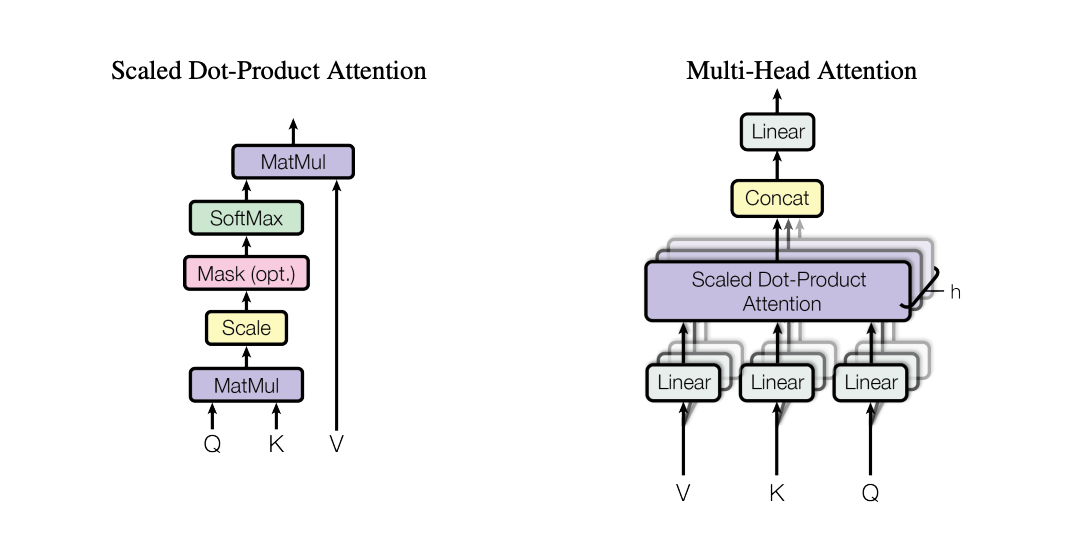
Image 2: Transformer Attention (2017)
Given this inputs, we will ask the model to identify which image fits the audio better. We expect the model to choose image one, and explain why.
audio_url= "https://podcast.do-not-panic.com/episodes/2026-04-19-bahdanau-attention-for-neural-machine-tr-dbd9b6.mp3"
image1_url = "https://machinelearningmastery.com/wp-content/uploads/2021/09/bahdanau_1.png"
image2_url = "https://miro.medium.com/v2/resize:fit:1400/1*6ggue1DJVQD8LidvKuPitQ.png"

response = openai_client.chat.completions.create(
    model=os.getenv("MODEL_ID"),
    messages=[
        {
            "role": "user",
            "content": [
                {
                    "type": "audio_url",
                    "audio_url":
                        {
                            "url": audio_url
                        }
                },
                {
                    "type": "image_url",
                    "image_url":
                        {
                            "url": image1_url
                        }
                },
                 {
                    "type": "image_url",
                    "image_url":
                        {
                            "url": image2_url
                        }
                },
                {
                    "type": "text",
                    "text": "Given this audio and these two images, choose which image fits the audio better and explain why."
                },
            ],
        }
    ],
    extra_body={
        "chat_template_kwargs":
            {
                "enable_thinking": True
            }
    },
)

print(response.choices[0].message.content)

# Based on the audio content, **Image 1** fits better.
#
# **Explanation:**
# The audio discusses the "Attention Paper" (Bahdanau et al., 2015), which introduced the attention mechanism to Neural Machine Translation (NMT). The key concept explained is replacing a **single fixed-length vector** (the "bottleneck") with a **sequence of source representations** (annotations) that the decoder can attend to dynamically.
#
# *   **Image 1** depicts an encoder-decoder architecture where the encoder processes the input sequence ($X_1, \dots, X_T$) into a series of hidden states ($h_1, h_2, \dots, h_T$). It shows attention weights ($a_{t,1}, a_{t,2}, \dots$) connecting these states to the decoder. This visualizes the "row of labeled bins" or sequence of annotations that the audio describes as the solution to the fixed-length vector problem.
# *   **Image 2** illustrates "Scaled Dot-Product Attention" and "Multi-Head Attention," which are specific components of the **Transformer** architecture (Vaswani et al., 2017). The audio explicitly clarifies that the paper being discussed is *not* the full Transformer model ("So attention here is not yet the full Transformer thing..."), making Image 2 less relevant to the specific paper being analyzed.
When deploying
nvidia/Nemotron-3-Nano-Omni-30B-A3B-Reasoning-BF16ornvidia/Nemotron-3-Nano-Omni-30B-A3B-Reasoning-FP8on Foundry, you will have a hard limit of 10 input assets per modality, i.e. 10 videos, 10 images and 10 audios max on a single prompt.
Release resources
Once you are done using the Foundry (classic) Endpoint, you can delete the resources (i.e., you will stop paying for the instance on which the model is running and all the attached costs) as follows:
client.online_endpoints.begin_delete(name=os.getenv("ENDPOINT_NAME")).result()Conclusion
Throughout this example, you learned how to deploy nvidia/Nemotron-3-Nano-Omni-30B-A3B-Reasoning-BF16 as an Azure Machine Learning Managed Online Endpoint on Microsoft Foundry (classic), and how to leverage its multimodal understanding power for audio, video, image and text.
If you have any doubt, issue or question about this example, feel free to open an issue and we’ll do our best to help!
Update on GitHub📍 Find the complete example on GitHub here!